Two picture editing tools arrived with the November 2026 update of Kitty AI Studio. Qwen Person Swap puts the person from one photo into another photo. Image Layers splits a picture into separate layers that you can edit or animate one by one. Both run on open Qwen models on our own GPUs, cost $0.34 and $0.38 per picture, and take a couple of minutes on a warm GPU (the first job after a quiet period can take a few minutes longer while a GPU starts). Here is how to use them, how to get good results, and where they sit next to the inpainting tools.
Qwen Person Swap
Qwen Person Swap takes a scene photo and a character photo and returns the scene with your character in it. What you upload:
- The scene: the photo the person should appear in.
- A character photo: the person you want to put there.
- A second character photo (optional), for a scene with two people.
- The mode: body or head.
- Fast mode and a prompt, both optional.
Body mode or head mode?
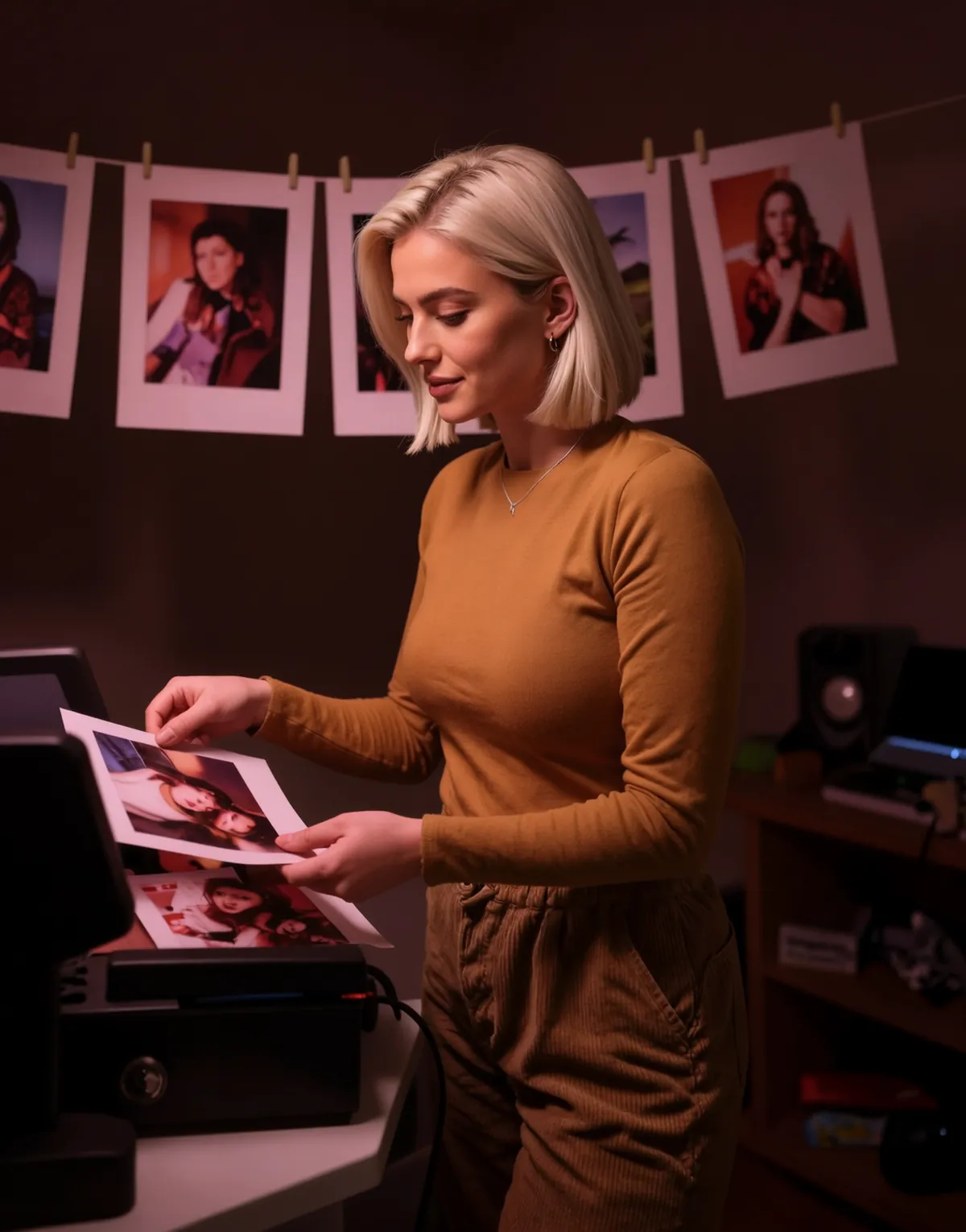
Body mode brings in the whole person, clothes included. In our example the scene was a redhead in a red down jacket on a mountain top at sunrise, with a black cat peeking out of her backpack. The character photo showed a blonde woman in a beige trench coat. The result is the blonde woman, trench coat and all, on the same rock with the same backpack, cat and sunrise.
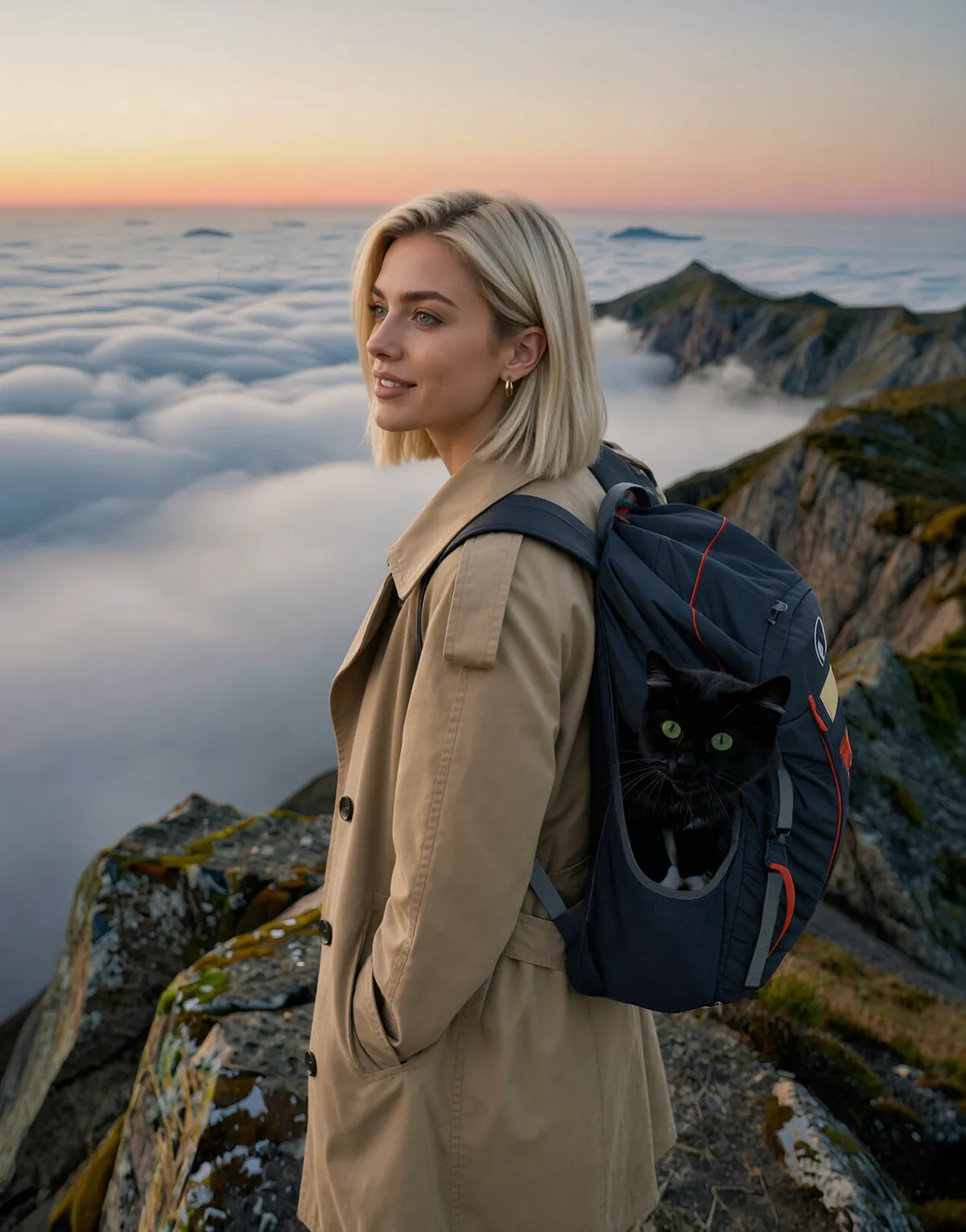
Head mode replaces only the head, meaning the face and hair. The body, clothes, pose and room stay as they are in the scene. Use it when the outfit in the scene matters: a uniform, a costume, a product someone is wearing.
Step by step
- Open Qwen Person Swap and upload the scene photo.
- Upload the character photo, plus a second one if the scene has two people.
- Choose body or head mode. Fast mode is fine for a first try; our body-mode example was made with it.
- The prompt is optional. Leave it empty for a first try.
- Check the price ($0.34) and start. The result is ready in about 2 minutes; download it within 24 hours.
If a fast result misses fine details such as hair edges or hands, run it again with fast mode off.
Tips for good source photos
- Use a sharp, well-lit character photo with the whole face visible: no sunglasses, no hand in front of the face, no heavy filters.
- Keep one person per character photo.
- For body mode, show the outfit you want: at least waist-up, and full body if the person in the scene is shown full body.
- Match light and angle where you can. A person lit from the left fits better into a scene lit from the left.
- Pick scenes where the person is reasonably large in the frame. A tiny figure in the distance leaves little room for detail.
- Only use photos of people who have agreed to it.
Image Layers
Image Layers takes one picture plus a short description and returns it as several separate layers, such as the background, the main subject and other objects. Each layer is its own picture, so you can move, replace, recolour or animate one part without touching the rest.
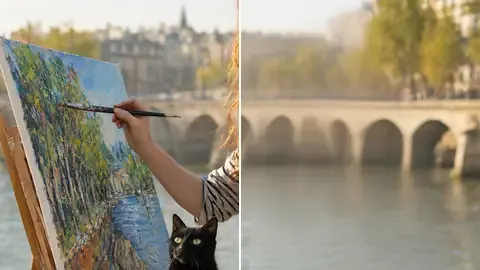
We gave it a picture of a painter in a red beret at an easel by a river, with a black cat sitting in her paint box. It returned four layers: the riverbank and bridge on their own, with the area behind the painter filled in; the painter; the easel with its canvas; and the cat with the paint box. The three cut-outs came as PNG files with transparent backgrounds.
How to use it:
- Upload the picture.
- Describe it in one sentence and mention the main parts, for example “a painter in a red beret at an easel by a river, a black cat in the paint box”.
- Check the price ($0.38), start and download all the layers. It takes about 2–3 minutes.
What to do with the layers
- Compositing: put the subject on a new background made with Z-Image Turbo or Krea 2 Turbo, move or resize an object, or place a title between the background and the subject, the “text behind the person” look of many thumbnails.
- Parallax animation: animate the background layer with LTX 2.5 Image to Video ($0.35 for 5 seconds) so the water moves. In the Kitty app, put that clip on a lower track and the cut-outs on the tracks above, then give each a slow keyframed move at a different speed. Keep the cut-outs as still pictures so their transparency stays.
- Design: recolour one layer, swap the background for a brand colour, or reuse the cut-outs in a kinetic typography reel in the Kitty app.
Limits: our test layers came out at 640 × 640 pixels, smaller than the source picture, so upscale the ones you keep; the background layer can go through SeedVR2 Simple Upscale ($0.14). Check the edges around hair, where a cut-out can show a soft halo.
Where they sit next to the inpainting tools
| What you want | Tool | Price | Typical time |
|---|---|---|---|
| Put a person from one photo into another | Qwen Person Swap | $0.34 | about 2 min |
| Get the parts of a picture as separate layers | Image Layers | $0.38 | about 2–3 min |
| Change an area you paint over | Qwen Image 2.1 Inpainting | $0.19 | under a minute |
| Change clothes or objects by naming them | Krea 2 Inpainting | $0.67 | about 5 min |
| Edit with one instruction, up to 5 pictures | Qwen Image 2.1 | $0.14 | under a minute |
A simple rule: if the change is about who is in the picture, use Person Swap. If it is one area, such as a jacket, the sky or a sign, use inpainting. Qwen Image 2.1 Inpainting is for when you want to paint the mask yourself; Krea 2 Inpainting lets you name the thing (“the red jacket”) and finds the area for you. For an instruction that changes the whole picture, or a blend of several photos, use Qwen Image 2.1. When you need the parts separately, use Image Layers.
From a swapped picture to video
A swapped picture is a good start for video. Use it as your own anchor frame in H3 Character Swap: take the frame at your start time, swap the person in, and upload it as the anchor. Or give a swapped portrait a voice with MiniMax H3 Talking Video ($0.61 for 5 seconds). More on the new video tools in our video tools guide.
FAQ
Is Qwen Person Swap a face swap?
Head mode is close to one: it replaces the face and hair and keeps the body and clothes from the scene. Body mode replaces the whole person, outfit included.
Can I swap two people at once?
You can add an optional second character photo for a scene with two people.
What files does Image Layers return?
Several pictures: a background with the hidden areas filled in, and cut-outs of the subject and other objects. In our test the cut-outs were PNG files with transparent backgrounds.
How much do Qwen Person Swap and Image Layers cost?
$0.34 per Person Swap and $0.38 per Image Layers job, paid from your credit balance. Each job makes one picture (or one set of layers), and there is no subscription.