
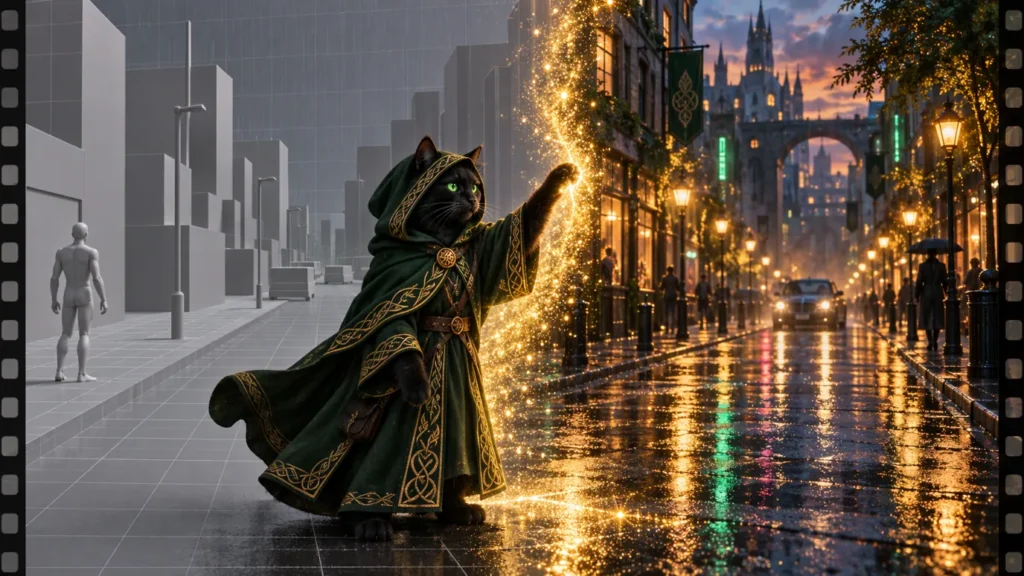
The November 2026 update of Kitty AI Studio adds four AI video tools and two new options for H3 Character Swap. H3 Reference to Video, H3 Extend and H3 Long Take are built on MiniMax’s open H3 video model; SolarRenderer turns a grey 3D blockout into a finished shot. All of these AI video tools run on our own GPUs and you pay per job, with the exact price shown before you pay.
| Tool | You upload | Price | Typical time |
|---|---|---|---|
| H3 Reference to Video | 1–2 pictures, prompt | 2 s $0.29, 4 s $0.47, 10 s $1.01 | about 3–4 min for 4 s |
| H3 Extend | a clip, prompt | $2.30 per extension (about 4.5 s) | about 20 min |
| H3 Long Take | 2 pictures, optional end frame, prompt | $1.42 per 8 s shot | about 11 min |
| SolarRenderer | blockout clip, look picture, prompt | $0.93 per shot (about 4.5 s) | about 7 min |
| H3 Character Swap | a video, 1–2 character pictures | 5 s $0.78, 10 s $1.45 | about 6 min for a short window |
Times are for a warm GPU. The first job after a quiet period can take a few minutes longer while a GPU starts.
H3 Reference to Video: your characters in a new clip
Use it to put your character, or two, into a new moving shot: two friends on a hike, a mascot in a product scene. It turns one or two reference pictures and a prompt into a clip of 2 to 10 seconds, 4 by default.
- Open H3 Reference to Video and upload one or two reference pictures.
- Write the prompt: who does what, where, and how the camera moves.
- Set the length and, if you like, a look: CinemaGrade for a graded film look or Commercial 80s for a retro TV-commercial look.
- Check the price, start and download the result within 24 hours.
Prompt tips:
- Use clear reference pictures: one person per picture, face visible, dressed the way they should look in the clip.
- Name people by what you can see (“the redhead in the red jacket”, “the blonde in the trench coat”) so each reference has a clear role.
- Give each clip one main action. “They laugh as they walk up a misty mountain path” fits 4 seconds better than a list of events.

Price and time: $0.29 for 2 seconds, $0.47 for the default 4, $0.56 for 5 and $1.01 for 10. A 4-second clip takes about 3–4 minutes. Limits: two reference pictures and 10 seconds per clip; continue a good take with H3 Extend.
H3 Extend: make a clip longer
H3 Extend continues an existing clip from its last frames, in the same style, adding about 4.5 seconds per run. It is for the shot that ends too early. In our preview, a woman smiling at a cat on a rainy windowsill goes on to lift the cat and hug it.
- Upload the clip you want to continue.
- Describe in the prompt what happens next.
- Check the price and start. Join the extension to your clip in an editor such as the Kitty app. To go further, extend the extension.
Prompt tips:
- Continue the motion that is already there. A sudden new action reads like a cut.
- H3 Extend works from the end of your clip, so trim the source to finish on a clean frame: no fade, no motion blur, no cut.
Price and time: a fixed $2.30 per extension and about 20 minutes, the most expensive and slowest of the new tools. For a cheap rough draft, animate the clip’s last frame with LTX 2.5 Image to Video ($0.35 for 5 seconds) instead.
H3 Long Take: one continuous shot
H3 Long Take makes one continuous 8-second shot guided by two reference pictures, with an optional end frame that shows where the shot should finish. Use it for walk-throughs. Our preview starts among vases of peonies, follows a woman through her house and ends with her reading by the fire, her cat beside her.
- Upload two reference pictures of the people and places that should appear.
- Add an end frame if you know how the shot should finish.
- Write the prompt as a route from start to end, check the price and start.
Prompt tips:
- Describe the route in order: “she arranges peonies by the window, walks through the hallway with a bouquet and sits down by the fire with a book”.
- Keep it possible in the time: 8 seconds fits one walk through two or three spaces.
- Our preview changes her outfit halfway through, so dress the character the same in every picture if the clothes should stay the same.

Price and time: a fixed $1.42 per 8-second shot; you do not pick a length. Our preview took about 11 minutes.
SolarRenderer: from grey blockout to finished shot
SolarRenderer is for people who plan shots in 3D. Build a rough blockout, plain grey shapes plus the camera move you want, and render it as a short clip from Blender or any other 3D tool. Add one picture of the look you want and a prompt. The camera and layout of the result come from the blockout; materials, light and style come from the picture.
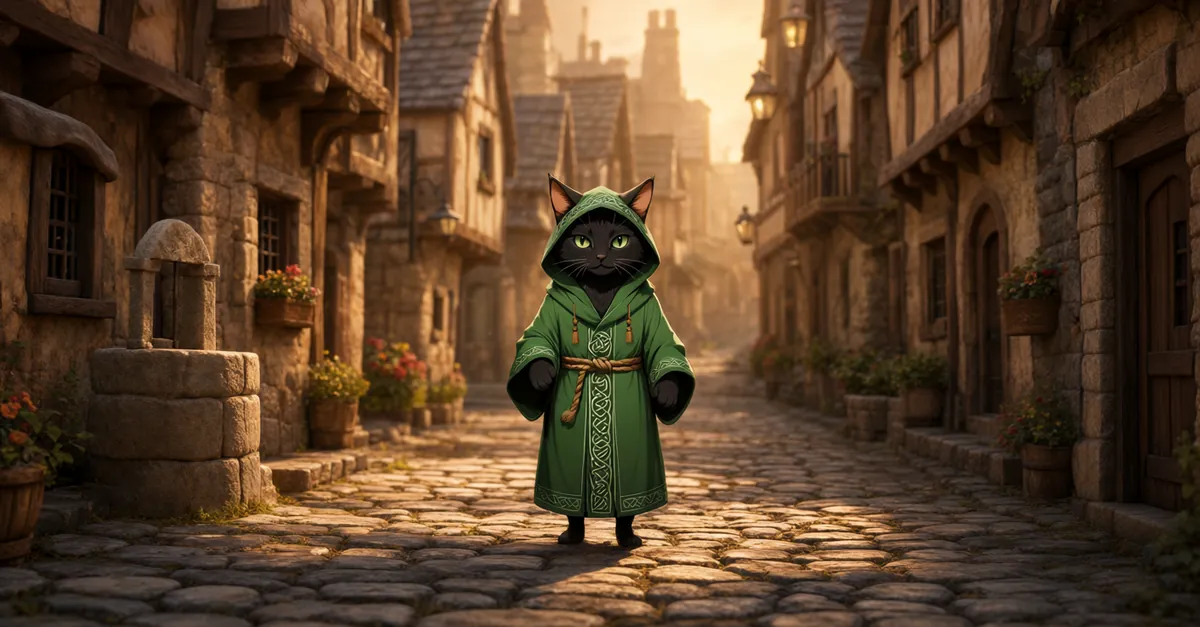
In our preview a grey clay figure walking between grey walls became a hooded black cat in a green robe on a cobbled street at golden hour. The walls turned into timber-framed houses and a grey pedestal into a stone well.
- Render the blockout as a short clip, roughly as long as the finished shot (about 4.5 seconds).
- Make the look picture. We restyled the first frame of our blockout into the finished scene, so the houses, the well and the figure sit where the blockout puts them. Qwen Image 2.1 can make this kind of edit from one instruction.
- Upload the blockout and the look picture, add a short prompt, check the price and start.
Prompt tips: let the blockout carry the camera and do not ask for a different move in the prompt. Use the prompt for what grey shapes cannot show: materials, time of day, what the character is doing.
Price and time: a fixed $0.93 per shot of about 4.5 seconds, ready in about 7 minutes. Limits: the camera and layout follow the blockout, so to change them, change the blockout.
H3 Character Swap: start time and anchor frame
H3 Character Swap replaces the person in a video with your character from one or two pictures. Only the person is re-drawn; the room, the camera, the motion and the original sound stay as they were. Two options are new:
- Start time: choose where in your clip the 5–15 second window begins, so you can swap a moment from the middle of a longer clip.
- Anchor frame: the automatic anchor frame first makes a clean edited first frame with Qwen Image 2.1, which keeps the new character more consistent (+$0.15). You can also upload your own, for example the frame at your start time edited with Qwen Person Swap.
Pick a window where the person is clearly visible and not covered. Price and time: $0.78 for 5 seconds, $1.45 for 10; the 768p setting doubles the per-second part ($1.45 for 5 seconds). A short window takes about 6 minutes at standard quality.
Putting the new AI video tools together
- Make a clip with H3 Reference to Video, keep the best take and continue it with H3 Extend.
- Plan a scene in 3D, render each shot with SolarRenderer and cut them together in the free Kitty app.
- Finish with Frame Interpolation for smoother motion or the LTX 2.5 Upscaler for a sharper picture.
FAQ
How long can an H3 Reference to Video clip be?
From 2 to 10 seconds, 4 by default. For a longer moment, continue it with H3 Extend, which adds about 4.5 seconds per run.
Can I extend a video I made somewhere else?
Yes. H3 Extend continues any clip you upload, starting from its last frames.
What is a 3D blockout?
A rough version of a scene built from simple grey shapes, used to plan the layout and the camera before any detail is added. SolarRenderer turns it into a finished shot.
What do CinemaGrade and Commercial 80s do?
They are optional looks in H3 Reference to Video: CinemaGrade gives a graded film look, Commercial 80s a retro TV-commercial look. They used to sit in MiniMax H3 Talking Video.